From $12 once · No subscription · You review every result before using it
Formality is only part of a good headshot. A portrait for your own website can have a different mood from a company directory photo, and both can still be professional. The thread running through every situation below is simple: look like yourself, keep the original, and make the crop fit the place.
Start with where the photo will live
Before you take or choose anything, open the page or profile where the photo will appear. Notice the crop shape, the background around it and the overall tone. If your company has a written brief, follow it. A photo that fits its destination is more useful than a dramatic standalone portrait.
- Small avatar: a clear face and a simple background matter most.
- About page: leave space for a wider crop if the layout needs one.
- Team directory: use the agreed light and background rather than your own idea.
Keep the details people recognise. Wear glasses if you usually do, and choose clothes that fit how you meet clients or colleagues. A familiar expression is a better introduction than a tense pose held in the name of looking professional.
How to take a LinkedIn headshot at home
You do not need a studio. Even light, a simple background and a sensible camera distance are enough for a clear, professional photo.
- Face a window or another broad, soft light source, and turn off overhead lights that add a different colour.
- Stand an arm’s length or more from a plain wall so you do not cast a hard shadow on it.
- Prop the phone at eye level, not low on a desk looking up at you.
- Use the timer or ask someone to press the shutter, and frame head and shoulders with room above your head.
- Take a burst of relaxed expressions: breathe out, think of someone you like talking to, and keep shooting.
A bookshelf can add warmth, but readable titles and bright objects should not dominate a small avatar. Check how LinkedIn’s current crop shows the photo before you publish. The window light section of our lighting guide and the phone timer tips apply just as well to work portraits.
Backgrounds for a remote-work headshot
Choose a simple, real setting that keeps attention on your face. An elaborate home office is not required.
- Plain wall: the most flexible option across every profile.
- Soft room context, slightly out of focus: warmth without clutter.
- Tidy workspace: fine if nothing readable or bright sits near your head.
Look for things you would rather keep private: documents, screens, addresses on post, reflections in a window or mirror. Take an unfiltered test shot in the planned light, view it at avatar size and remove one distraction at a time. If a bright book spine sits by your ear, moving the camera slightly is easier than rebuilding the room.
Casual or formal: choose for the audience
Match the portrait to how you actually meet the people who will see it. A blazer can suit a conference programme; a relaxed shirt may suit a personal portfolio. Neither should suggest a different personality.
If you are unsure, take two versions in the same session with the same light and framing: your familiar everyday look and one step more formal. Compare posture and expression, then ask which fits the page’s purpose. Often the less formal one looks more at ease, and that matters more than the outfit. Our outfit guide covers colours and patterns that photograph well. If your work spans different settings, keep a few labelled variants, such as name-formal-2026.jpg and name-casual-2026.jpg.
Making team-page headshots consistent
Agree on framing, light and export settings before anyone takes a photo. Consistency does not mean everyone has the same expression, and it never means adjusting skin tones to make a grid match.
Write a short brief people can follow at home without equipment, for example: head and shoulders, top of head about a hand’s width from the top edge; face a window; plain light wall; usual work clothes; no filter; send the original file. Then compare face size and headroom across the set, apply the same light editing to each photo and get every person’s approval of their own picture. A common crop fixes an uneven page better than a strong filter. If the team uses AI portraits, each person should consent and confirm the likeness.
Founder and about-page portraits
Pick a current photo that fits the page and leaves room for the real layout. An about-page portrait can show a wider setting; a small author avatar needs a clear face. If the design needs both, take a close and a wide version in the same session.
Make sure the setting represents your work honestly. An ordinary workspace is often more fitting than a staged luxury office that implies a much bigger company. Keep visible branding accurate, avoid text baked into the image, confirm image rights and credits, and store a high-quality original with labelled web exports so a future redesign does not mean re-compressing an old copy.
Preparing a speaker media kit
Event organisers should not have to guess which photo to use or how to credit it.
- Include the full approved original and a portrait crop with space around the face for programme layouts.
- Name files with your name and the date, such as alex-morgan-headshot-2026-10.jpg.
- Add any required photographer credit and note permission limits.
- Send your biography as a separate text file, not embedded in the image.
A small avatar copied from a social profile can look soft in a printed programme, so always send the original. Update the kit when your appearance or job title changes rather than relying on organisers to find the latest version.
A headshot for a freelance profile
Use a clear, current photo that fits the work you offer, and use the same one across proposals, marketplace profiles and video calls so clients recognise you. A designer, a developer and a consultant may choose different levels of formality; go with what feels natural in your real client meetings. Keep text and logos away from your face, keep the editing restrained, and save a busier workshop or studio shot for your about page rather than the icon. Never add an invented office, badge or award to look more established.
Choosing an author bio photo
The same photo may appear as a tiny byline circle and a larger biography image, so pick one that stays readable beside text and is easy for editors to crop. A clear portrait travels better across publication layouts than a wide scene that relies on a background detail. Supply a high-quality original, a simple crop and any required credit, with the written bio kept separate, and keep a note of where you have supplied it so you can update the main publications when the photo dates.
Cropping a website headshot for mobile
Check the photo in the real layout at both phone and desktop widths. A crop that works in a desktop column can cut your face on a narrow screen, where many layouts crop towards the centre.
- Keep your face near the centre with space around your head.
- Keep anything important away from the outer edges.
- Test the narrow-screen version, not only the desktop one.
- If recognition suffers, supply a separate portrait asset for small screens.
Never enlarge a small avatar for a large banner; enlarging cannot add real detail. The free crop and resize tool lets you compare square, portrait and landscape crops in your browser, and the guide to editing without overdoing it covers exports and compression.
Where AI headshots from your selfies fit
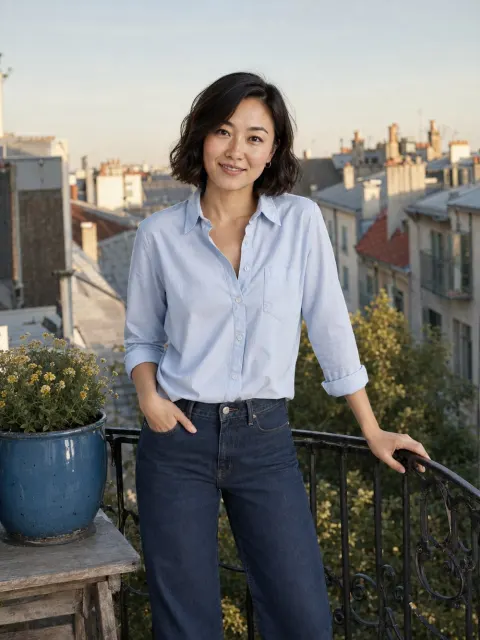
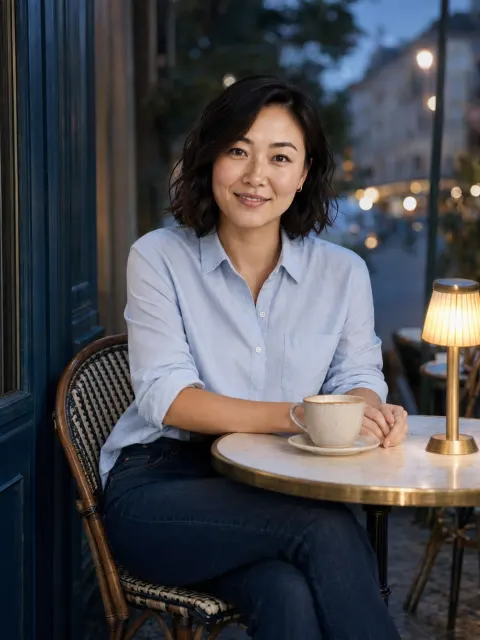
Charmshots creates new portraits of you from your own selfies. The scenes are everyday and evening settings, not a plain studio backdrop, so they suit a relaxed introduction rather than a corporate directory. Scenes that tend to work for a personal website, speaker page or freelance profile include a café table, a neighbourhood stoop, a quiet lounge and a rooftop evening.
If your employer or industry expects a formal headshot on a neutral background, a photographer or a well-lit photo against a plain wall is still the better choice; our comparison of AI portraits and a photographer sets out the trade-offs. Your credits work across every scene, so you do not need a separate plan for work pictures. Browse the photo collection before deciding what to generate.
Check the likeness before you use it
AI can alter glasses, teeth, facial proportions, hairline and clothing. A polished portrait is no use if colleagues need a moment to recognise it. Compare every result side by side with a current, unedited photo and keep only the ones a colleague would recognise at once.
- Face shape, nose, teeth and hairline match.
- Glasses, facial hair, scars and tattoos match what people see in person.
- Apparent age and build are yours, not a younger or slimmer version.
- Nothing in the scene suggests credentials, an employer or a workplace you do not have.
Check the rules of the platform and your employer before using an AI portrait at work. The AI portrait likeness checklist covers hands, skin texture and hair in detail, and choosing selfies for AI portraits explains what to upload for the most accurate results.
When to replace your headshot
Replace it when it no longer looks like you or no longer works where you use it. Recognition, quality and relevance are better tests than the photo’s age.
- A major change in hair, facial hair, glasses or how you usually dress.
- A file too small or soft for the places you need it.
- A heavy filter, or a crop from an unrelated event.
- A new role where the old setting or formality no longer fits.
Take a clear new portrait rather than retouching the old one to imitate your current look. Then update your main profiles, media kit and website together, checking bios, job titles and credits at the same time so the photo and the words tell the same story.
Headshot questions
Should a headshot always use a plain background?
A plain background is a safe starting point, especially for small profile images where detail disappears. A wider portrait for an about page can include real context if nothing distracts from your face and the setting honestly reflects your work.
Can I use one headshot everywhere?
You can reuse a good portrait, but check the crop and tone in each destination. Keep a high-quality original so you can make a square avatar, a portrait crop and a wider version without re-compressing an old copy.
How do I take a professional headshot with my phone?
Face a window for soft light, stand away from a plain wall, prop the phone at eye level and use the timer or a friend. Take a burst of relaxed expressions and check the result at avatar size before choosing.
Is it OK to use an AI headshot on LinkedIn?
Check the platform’s current rules and your employer’s policy first. If you use one, it must look like you now, with accurate hair, age and features, and it must not imply credentials, an employer or a workplace you do not have.
Can Charmshots make a plain studio-backdrop headshot?
No. Charmshots scenes are everyday and evening settings, not a studio backdrop. Some suit a relaxed work portrait; if your industry expects a formal headshot on a neutral background, a photographer or a well-lit phone photo against a plain wall is the better choice.
How often should I update my professional headshot?
When your appearance changes noticeably or the photo no longer suits your role, rather than on a fixed schedule. The test is whether someone meeting you would recognise you straight away.